
Configuring Appliances
Connecting to the Appliance CLI
You can configure advanced options in Gaia from the Gaia Portal or through Gaia Clish.
To connect to the command line interface of the appliance, use one of these:
-
An SSH connection to the management interface.
-
A serial console cable and terminal emulation software, such as PuTTY (from Windows) or Minicom (from Unix/Linux).
The appliances support these serial console connectivity options:
-
USB type-C - Use the included USB type-C console cable.
-
RJ45 - Use the included DB9 DTE to RJ45 serial console cable.
Connection parameters for the appliances are: 9600bps, 8 bits, no parity, 1 stop bit (8N1), Flow Control - None.
If you use both the USB type-C and RJ45 console ports, the USB type-C port has priority. To use the RJ45 port, first disconnect the USB type-C console cable.
When you finish using the RJ45 port, reconnect the mini-USB console cable.

Note - To use the USB type-C console port, you must install a driver on the console client machine (desktop/laptop). For installation instructions and the download link, see sk176466.
-
Starting the Appliance
Connect the appliance to a power source and turn on the appliance.
When the appliance is ready, run the Gaia First Time Configuration Wizard to configure it.
To start the appliance:
Connect the power cables to the power supply units in the rear panel.
The appliance turns on.
|
|
Note - When one of the power supply unit cords is not connected to the outlet, an alarm sounds continuously. If you hear the alarm, reconnect the cord to the outlet. To turn off the alarm, press the red Alarm off button on the rear panel of the appliance. |
Initial Gaia Configuration
Configure the appliance with the Gaia First Time Configuration Wizard.
See the Gaia Administration Guide for your version > Chapter Configuring Gaia for the First Time > Section Running the First Time Configuration Wizard in Gaia Portal.
Configuring the Security Gateway Object in SmartConsole
See the Installation and Upgrade Guide for your version > Chapter Installing a Security Gateway, VSX Gateway.
Configure a Security Gateway object on the Management Server:
-
Connect with SmartConsole to the Management Server.
-
Create a new Security Gateway object for the appliance.
-
Enter the IP address for the appliance.
-
Create Secure Internal Communication (SIC) between the Security Gateway and the Management Server.
Enter the same activation key you used in the Gaia First Time Configuration Wizard.
-
Configure the topology of interfaces.
-
Configure the Security Policy.
-
Install the Security Policy.
Available Software Images
The LightSpeed Appliances come with software images. See sk176466.
Reverting to a previous software image takes a few minutes.
To follow the progress and see when the appliance is ready, use a serial console to connect to the appliance.
Synchronizing RAID
The appliances support two storage devices. RAID1 mirroring across both storage devices is used.
This lets the appliance continue to work if there is a storage device failure.
The mirror rebuild is automatic. Both storage devices must be the same type.
 First Boot Up
At first boot up, wait for up to six hours to let the storage devices fully synchronize. If you reboot the appliance before the storage devices are synchronized, the synchronization starts again from the beginning at the next boot.
To monitor the RAID status of the storage devices on the appliance in Gaia Portal
-
Log in to the Gaia Portal.
-
From the left tree, click Maintenance > RAID Monitoring.
To monitor the RAID status of the storage devices on the appliance in Gaia Clish
-
Connect to the command line on the appliance.
-
Log in to Gaia Clish.
-
Run this command to monitor the RAID status of the storage devices:
raid_diagnosticThis command shows data about the RAID and storage devices, with the percent of synchronization complete:
Model
DiskID:0
DiskID:1
QLS250,
QLS450,
QLS650,
QLS800
Left storage device
Right storage device
MLS200
Top storage device
Bottom storage device
(numbered 1 and 2 on the appliance)
MLS400
The storage device is internal
and cannot be added or removed
The storage device is internal
and cannot be added or removed
-
After the first boot and after you replace a second storage device, the RAID state (in the VolumeID line) shows
DEGRADED(this indicates that the drives are not synchronized).The State of DiskID:0 shows "
ONLINE" and the State of DiskID:1 shows "INITIALIZING". -
After the RAID is synchronized, the RAID State (in the "
VolumeID" line) shows "OPTIMAL" (this indicates that the drives are synchronized).The States of DiskID:0 and DiskID:1 show "
ONLINE".
Example output on a QLS800 appliance - The storage devices are fully synchronized (disk sizes and vendor may vary):
QLS800> raid_diagnostic Raid status: VolumeID:0 RaidLevel: RAID-1 NumberOfDisks:2 RaidSize:894GB State:OPTIMAL Flags:ENABLED DiskID:0 DiskNumber:0 Vendor:ATA ProductID:SAMSUNG MZ7L3960 Revision:004Q Size:894GB State:ONLINE Flags:NONE DiskID:1 DiskNumber:1 Vendor:ATA ProductID:SAMSUNG MZ7L3960 Revision:004Q Size:894GB State:ONLINE Flags:NONE -
To monitor the RAID status of the storage devices from SmartConsole
-
From Gateways & Servers, select the object that represents the appliance.
-
In the Summary tab, click Device Information.
Example:

-
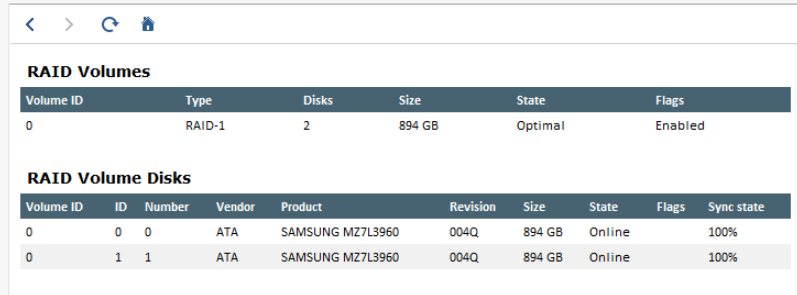
Click RAID Volumes.
The window shows volume and disk information.
Example:
To monitor the RAID status of the storage devices using SNMP
Configure SNMP traps to send information about the RAID.
Use OID: 1.3.6.1.4.1.2620.1.6.7.7
For more information, see the Gaia Administration Guide for your version > Chapter System Management > Section SNMP.
To hot-swap a storage device
|
|
Important - Make sure that there is at least one fully synchronized storage device in the system. |

-
When the system is up, remove the failed storage device.
-
Wait 15 seconds.
The appliance recognizes that you removed a storage device.
-
Insert a new storage device.
If necessary, you can reboot the appliance with one storage device and install the new storage device later.
The system automatically adds the new storage device to the RAID configuration.