6000 and 7000 Appliances Installing and Removing Memory
This document applies to these appliances:
-
6200 Appliances
-
6400 Appliances
-
6500 Appliances
-
6600 Appliances
-
6700 Appliances
-
6800 Appliances
- 6900 Appliances
-
7000 Appliances

Important - We recommend that only experienced personnel install or remove hardware components. Installing or removing components incorrectly can permanently damage the appliance.
Preparing the Appliance
Before you start to install or remove DIMMs, make sure that:
-
The appliance is shut down and you unplug the power cables.
-
The appliance is in a clean environment and on a level surface.
-
You can physically access and open the cover of the appliance.
-
You have the Check Point memory kit.
Important
To protect the appliance and the memory modules from electrostatic discharge damage, make sure that you are properly grounded before you touch these components. For more information, see the Health and Safety Information in the .
Memory Kit Contents
-
Installation guide - 6000 and 7000 Appliances Installing and Removing Memory
-
Memory DIMMs
-
ESD grounding strap (anti-static)
To prepare the appliance:
-
Shut down the appliance from the WebUI, CLI, or by pressing and releasing the power switch quickly.
Note that pressing and holding the power switch is not recommended as it results in a forced and immediate shut down. -
Remove the power cords from the appliance.
-
Put on the ESD strap and attach the other end:
-
On 6500 appliances - To any unpainted point on the appliance chassis.
-
On 6200, 6400, 6600, 6700, 6800, 6900, and 7000 appliances - To the ESD grounding plug on the rear panel of the appliance.
-
-
Loosen the appliance cover screws.
-
Remove the top cover from the appliance.
To remove the top cover:
-
Unscrew the cover screws (number 2 below).
-
Pull the top cover back in the direction of the arrows.
-
Pull the cover up to remove it completely.

The 6800 appliance is shown above. Removal of the top cover is the similar for all 6000 appliances.
|
Item |
Description |
|---|---|
|
1 |
Appliance cover |
|
2 |
Appliance cover screws |
|
3 |
ESD grounding plug (for placement in all models, see the Rear Panel section in the ) |
6000 and 7000 Appliance Configuration
The memory sockets in the 6000 appliances are colored black and blue. The memory sockets in the 7000 appliances are colored blue.
In the DIMM configuration diagrams that follow note that:
-
The view shown is always from the top
-
The front panel of the appliance is always at the bottom of the diagram
Item
Description

Memory socket with DIMM installed

Memory socket without DIMM installed
6200/6400/6600/6700 Base Appliances DIMM Configuration
The 6200/6400/6600/6700 Base appliances have a default memory configuration of 8 GB with one DIMM in memory slot A1. You can upgrade to 16 GB or 32 GB.
Use the applicable upgrade procedure below.
|
8 GB Default Configuration |
|---|
|
Top View |

|
To upgrade to |
Use DIMMs |
Procedure |
Slots |
|---|---|---|---|
|
16 GB |
2 x 8 GB |
Install two 8 GB DIMMs |
In memory slots A1 and B1 |
|
16 GB Upgraded Configuration |
|---|
|
Top View (front panel of the appliance is at the bottom of the diagram) |

|
To upgrade to |
Use DIMMs |
Procedure |
Slots |
|---|---|---|---|
|
32 GB |
4 x 8 GB |
Install four 8 GB DIMMs |
In all memory slots |
|
32 GB Upgraded Configuration |
|---|
|
Top View |

6200 Plus/Turbo and 6400/6600/6700 Plus Appliances DIMM Configuration
The 6200 Plus/Turbo and 6400/6600/6700 Plus appliances have a default memory configuration of 16 GB with two DIMMs in memory slots A1 and B1. You can upgrade to 32 GB. Use the upgrade procedure below.
|
16 GB Default Configuration |
|---|
|
Top View |

|
To upgrade to |
Use DIMMs |
Procedure |
Slots |
|---|---|---|---|
|
32 GB |
4 x 8 GB |
Install four 8 GB DIMMs |
In all memory slots |
|
32 GB Upgraded Configuration |
|---|
|
Top View |
6500 Appliances DIMM Configuration
The 6500 appliances have a default memory configuration of 8 GB with one DIMM in memory slot number 2. You can upgrade to 16 GB or 32 GB. Use the applicable upgrade procedure below.
|
8 GB Default Configuration |
|---|
|
Top View |

|
To upgrade to |
Use DIMMs |
Procedure |
Slots |
|---|---|---|---|
|
16 GB |
2 x 8 GB |
Install two 8 GB DIMMs |
In memory slots 2 and 4 |
|
16 GB Upgraded Configuration |
|---|
|
Top View (front panel of the appliance is at the bottom of the diagram) |

|
To upgrade to |
Use DIMMs |
Procedure |
Slots |
|---|---|---|---|
|
32 GB |
4 x 8 GB |
Install four 8 GB DIMMs |
In all memory slots |
|
32 GB Upgraded Configuration |
|---|
|
Top View |

6800 Appliances DIMM Configuration
The 6800 appliances have a default memory configuration of 16 GB with two 8 GB DIMMs in memory slots numbers 1 and 3. You can upgrade to 32 GB or 64 GB. Use the applicable upgrade procedure below.
|
16 GB Default Configuration |
|---|
|
Top View |

|
To upgrade to |
Use DIMMs |
Procedure |
Slots |
|---|---|---|---|
|
32 GB |
4 x 8 GB |
Install four 8 GB DIMMs |
In memory slots 1, 3, 6, and 8 |
|
32 GB Upgraded Configuration |
|---|
|
Top View (front panel of the appliance is at the bottom of the diagram) |

|
To upgrade to |
Use DIMMs |
Procedure |
Slots |
|---|---|---|---|
|
64 GB |
8 x 8 GB |
Install eight 8 GB DIMMs |
In all memory slots |
|
64 GB Upgraded Configuration |
|---|
|
Top View |

6900 Base Appliances DIMM Configuration
The 6900 Base appliances have a default memory configuration of 16 GB with two 8GB DIMMs in memory slots A1 and B1. You can upgrade to 32 GB or 64 GB.
Use the applicable upgrade procedure below.
|
16 GB Default Configuration |
|---|
|
Top View |
|
To upgrade to |
Use DIMMs |
Procedure |
Slots |
|---|---|---|---|
|
32 GB |
4 x 8 GB |
Install four 8 GB DIMMs |
In all memory slots |
|
32 GB Upgraded Configuration |
|---|
|
Top View |
|
To upgrade to |
Use DIMMs |
Procedure |
Slots |
|---|---|---|---|
|
64 GB |
4 x 16 GB |
Install four 16 GB DIMMs |
In all memory slots |
|
64 GB Upgraded Configuration |
|---|
|
Top View |
6900 Plus Appliances DIMM Configuration
The 6900 Plus appliances have a default memory configuration of 32 GB with two 16 GB DIMMs in memory slots A1 and B1. You can upgrade to 64 GB. Use the upgrade procedure below.
|
32 GB Default Configuration |
|---|
|
Top View |
|
To upgrade to |
Use DIMMs |
Procedure |
Slots |
|---|---|---|---|
|
64 GB |
4 x 16 GB |
Install four 16 GB DIMMs |
In all memory slots |
|
64 GB Upgraded Configuration |
|---|
|
Top View |
7000 Base Appliances DIMM Configuration
The 7000 Base appliances have a default memory configuration of 16 GB with two 8GB DIMMs in memory slots 3 and 4. You can upgrade to 32 GB or 64 GB.
Use the applicable upgrade procedure below.
|
16 GB Default Configuration |
|---|
|
Top View |

|
To upgrade to |
Use DIMMs |
Procedure |
Slots |
|---|---|---|---|
|
32 GB |
2 x 16 GB |
Install two 16 GB DIMMs |
In memory slots 3 and 4 |
|
32 GB Upgraded Configuration |
|---|
|
Top View |
|
To upgrade to |
Use DIMMs |
Procedure |
Slots |
|---|---|---|---|
|
64 GB |
4 x 16 GB |
Install four 16 GB DIMMs |
In memory slots 2, 3, 4, and 5 |
|
64 GB Upgraded Configuration |
|---|
|
Top View |

7000 Plus Appliances DIMM Configuration
The 7000 Plus appliances have a default memory configuration of 32 GB with two 16 GB DIMMs in memory slots 3 and 4. You can upgrade to 64 GB. Use the upgrade procedure below.
|
32 GB Default Configuration |
|---|
|
Top View |
|
To upgrade to |
Use DIMMs |
Procedure |
Slots |
|---|---|---|---|
|
64 GB |
4 x 16 GB |
Install four 16 GB DIMMs |
In memory slots 2, 3, 4, and 5 |
|
64 GB Upgraded Configuration |
|---|
|
Top View |
Removing DIMMs
|
|
Important - The appliance contains sharp metal parts such as the heat sink fin and bracket that can cause injury or damage the DIMMs. |
Make sure that you prepare the appliance before you remove DIMMs. For more information, see Preparing the Appliance.
To remove DIMMs from the appliance:
-
Remove the power cords from the appliance.
-
Put on the ESD strap and attach the other end to a grounding point.
-
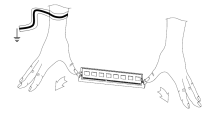
Press the two retaining clips outward.
-
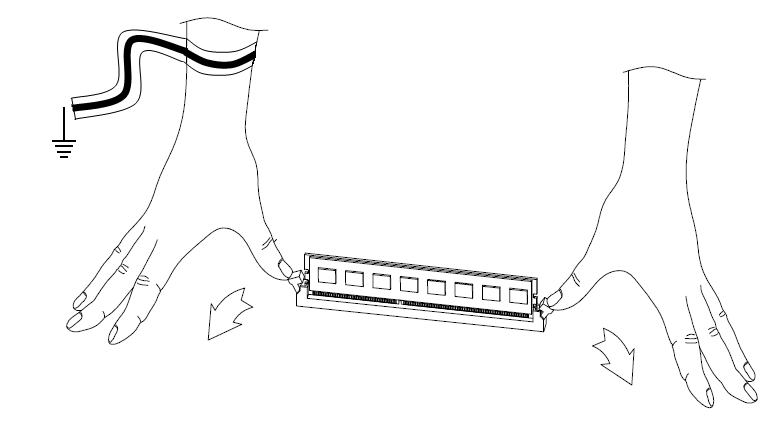
Carefully pull the DIMM up.
Important - Only touch the rear corners of the DIMM. Pressing on the heat sink or other DIMM components can damage the hardware.

If necessary, pull one end of the DIMM, then the other, to gradually release it from the contact pins.
Important - Make sure that there are no leftover parts inside the appliance.
-
Make sure the DIMMs are installed correctly.
-
Replace the appliance cover without tightening the appliance cover screws.
-
Connect the power cords to the appliance.
The appliance turns on. This may take a few minutes.
-
-
Tighten the appliance cover screws to secure the cover on the appliance.
Installing DIMMs
You can add more DIMMs to the memory sockets.
|
|
Important - The appliance contains sharp metal parts such as the heat sink fin and bracket that can cause injury or damage the DIMMs. |
To install DIMMs in the appliance:
-
Find the DIMM slots on the system board.
-
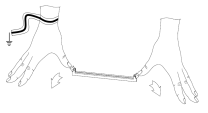
Press on the two white retaining clips outward.
-
Align the new DIMM above the socket.
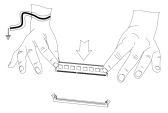
The top of the DIMM is smooth. The bottom edge has two different-length sets of contacts, which connect to the slots on the socket.
Important:
-
Only touch the top corners of the DIMM. Pressing on the heat sink or other DIMM components can damage the hardware.
-
DIMMs are not symmetrical. Use the hole in the DIMM to guide the DIMM into the raised tooth in the slot.
-
-
Press the new DIMM into the socket until it clicks into position.
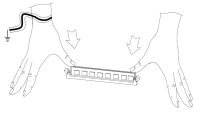
The retaining clips move into the lock position as you press the DIMM into position.
-
Do steps 1 - 4 again for the other DIMMs.
-
Make sure that there are no leftover parts in the appliance.
-
Make sure the DIMM(s) are installed correctly.
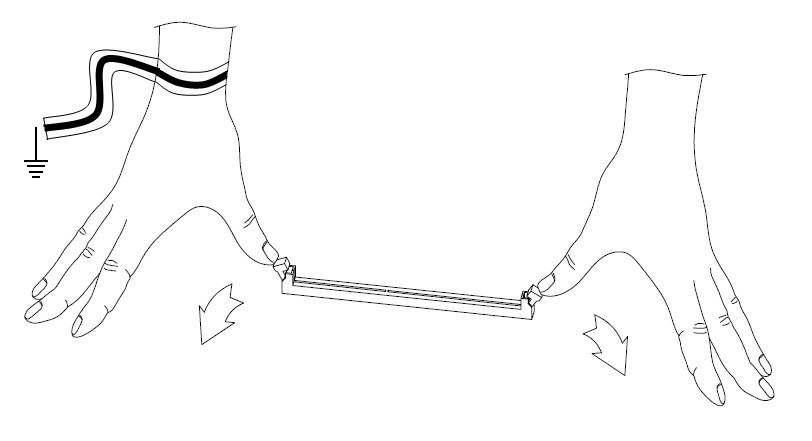


-
Replace the appliance cover without using the appliance cover screws.
-
Connect the power cords to the appliance.
The appliance turns on. This may take a few minutes.
-
Use the appliance cover screws to secure the cover on the appliance.
Verifying the Memory Configuration
-
In the CLI, enter Expert mode.
-
Run:
# free -g -o
Example for a 6500 appliance with 16 GB of memory:
[Expert@gw-419463:0]# free -g -o total used free shared buffers cached Mem: 15 0 15 0 0 0 Swap: 16 0 16 |
|
|
Note - The amount of installed memory is shown in the row named For reasons related to available memory address space, the total installed memory shown in the freeutility is similar but not identical to the actual installed memory. |

In the above example, 16 GB of RAM are installed on the system. This corresponds to the 15 GB of total memory shown in the freeutility.
